JFR Shell Gets a TUI: Because Scrolling Is for Mortals
- The Problem with Scrolling
- Getting In
- The Layout
- Tabs
- Search and Filter
- Sorting
- The Detail Pane
- Event Browser
- Constant Pool Browser
- Metadata
- Session Switching
- Completion
- Export
- History
- Cell Picker
- The Keyboard Cheat Sheet
- Under the Hood
- Try It
The Problem with Scrolling
If you have used jfr-shell for any non-trivial analysis, you know the drill. You run a query, get a wall of text, scroll up to see the header, lose your place, scroll back down, squint at a column that wrapped awkwardly, then run the query again with --limit 10 because your terminal buffer just swallowed the first thousand rows.
It works. It’s fine. It’s also the terminal equivalent of reading a spreadsheet by printing it on a receipt roll.
Starting with version 0.14.0, jfr-shell ships with a full-screen terminal UI mode built on TamboUI, a ratatui-inspired widget framework for Java. Launch it with --tui and the scrolling stops. Everything stays put. You navigate, filter, drill down, and export - all without losing context.
Getting In
jfr-shell --tui
jfr> open recording.jfr
That’s it. Launch the TUI, open a recording. Same queries, same JfrPath, same everything. The difference is that the output no longer scrolls off into the void.
The Layout
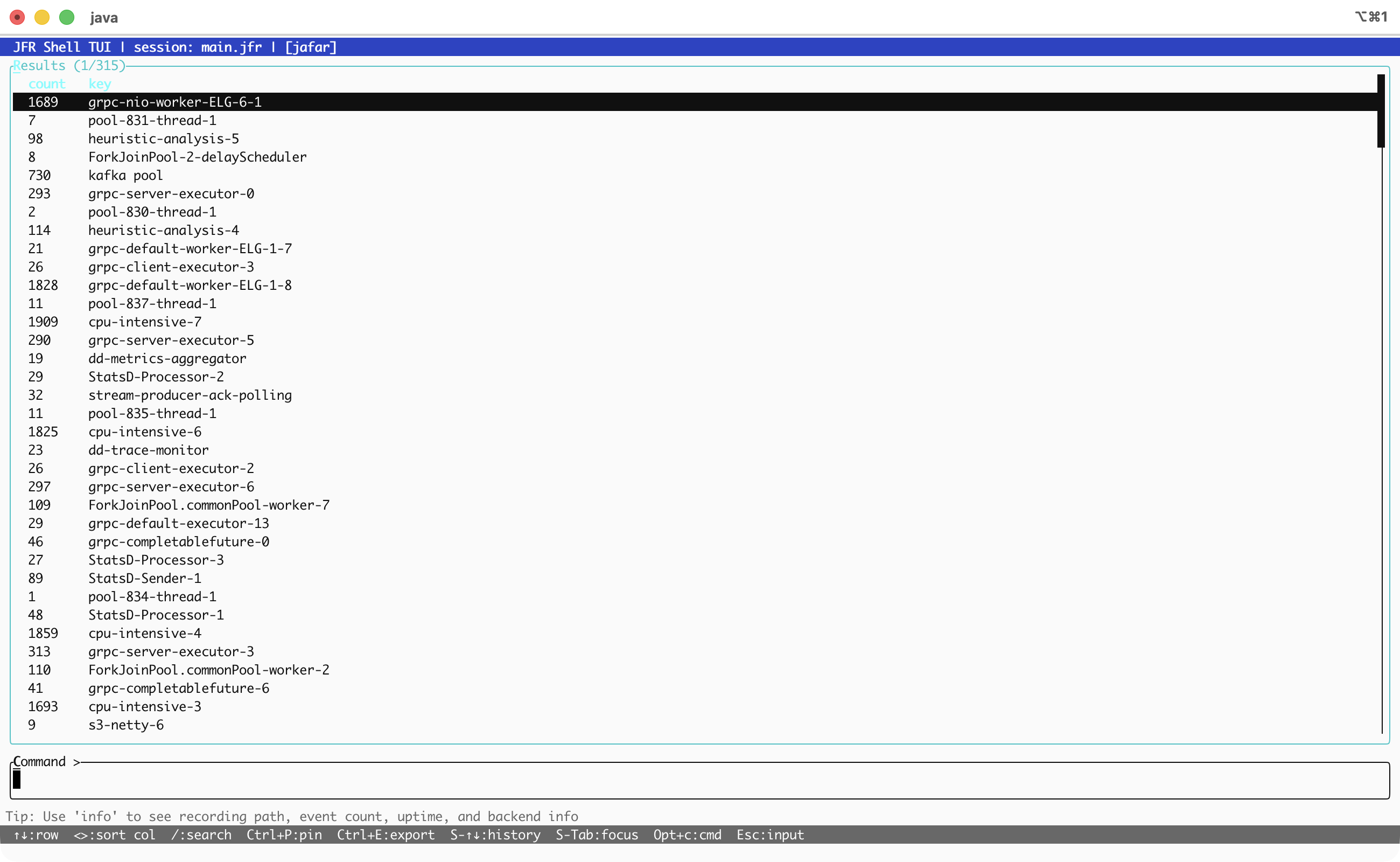
The screen is divided into a few fixed zones, top to bottom:
- Status bar - shows the active session and recording name
- Results pane - your query output, rendered as a table or tree
- Command input - where you type, with the familiar
jfr>prompt - Tips & hints - rotating usage tips and context-aware keyboard shortcuts
The results pane is the main attraction. It holds a navigable table with row selection, column sorting, and horizontal scrolling. No more piping into less and pretending that’s ergonomic.
Tabs
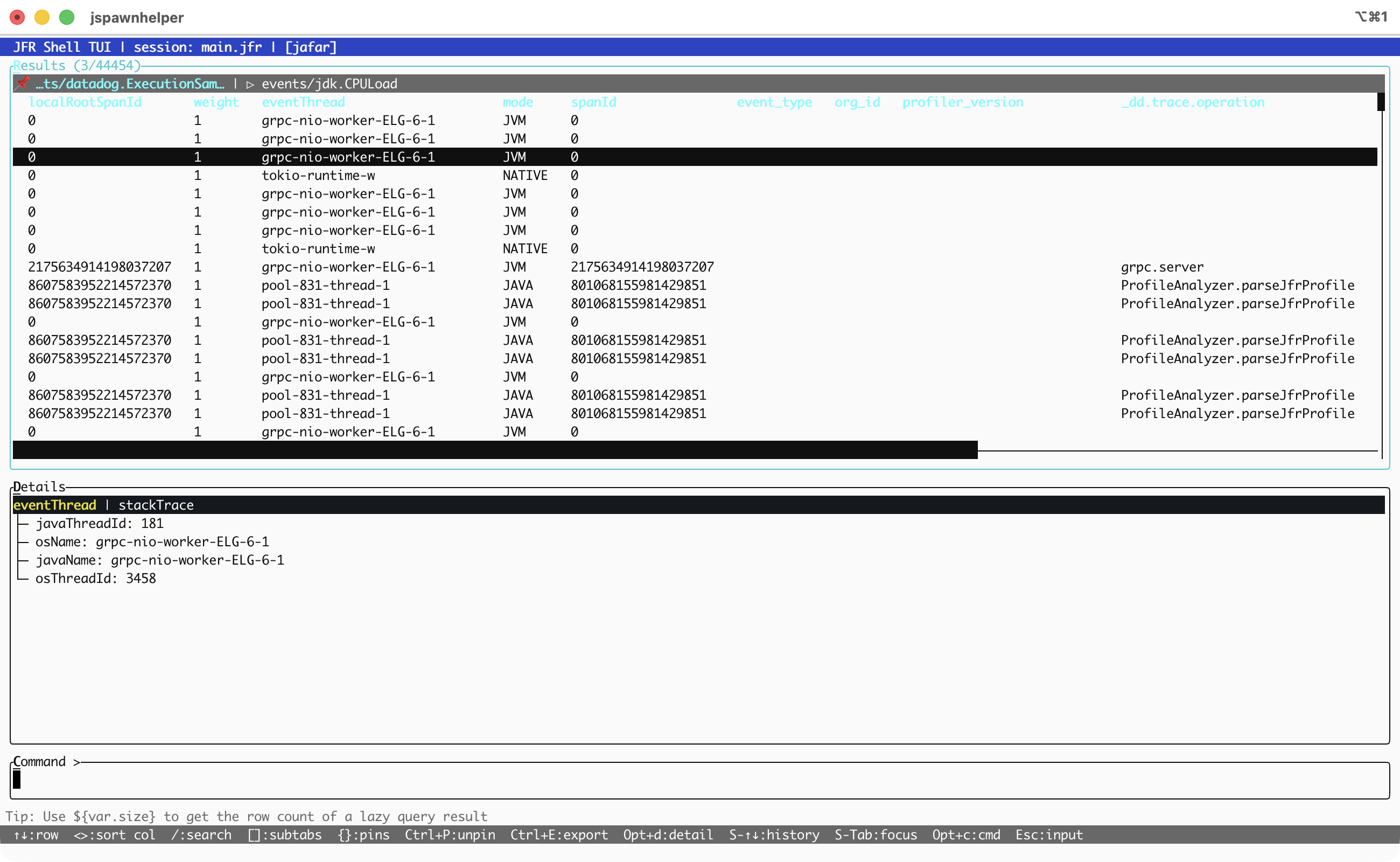
By default each command is rendered into a scratch-tab — it will get replaced by the next command. Pin the tab with Ctrl+P to prevent it from being overwritten. Pinned tabs stick around and you can switch between them with { and }.
Search and Filter
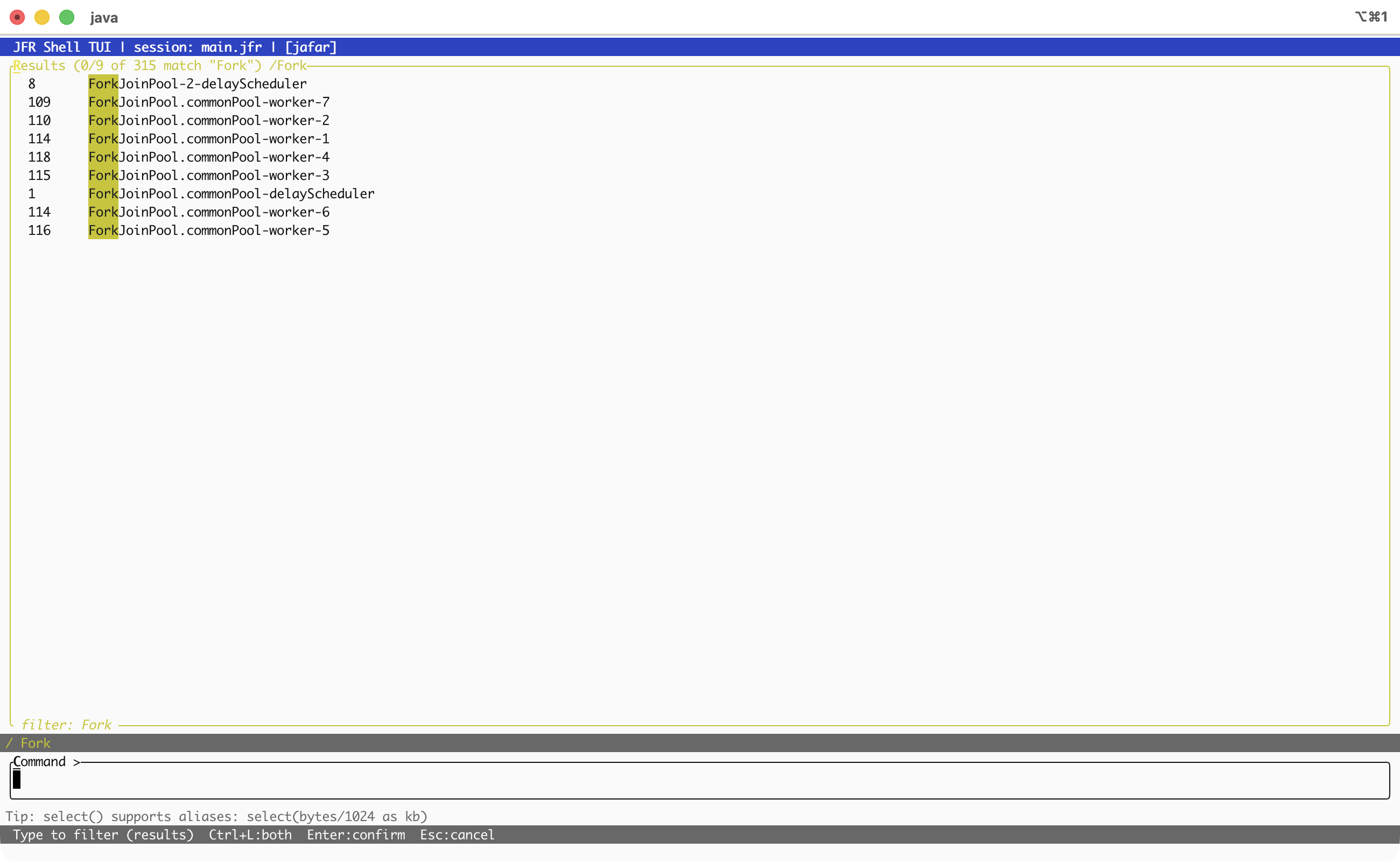
Press Ctrl+F and start typing. The table filters in real time - only rows containing your search term are shown, with matches highlighted in yellow. The status line shows the hit count. Press Enter to lock the filter, Esc to cancel.
This works the same way you would expect from any reasonable tool: case-insensitive, substring match, instant feedback.
Sorting
< and > cycle through sort columns. Alt+r reverses the sort direction. The currently sorted column is indicated in the header. Combined with filtering, this lets you answer questions like “which thread had the most samples” without writing a top() aggregation.
The Detail Pane
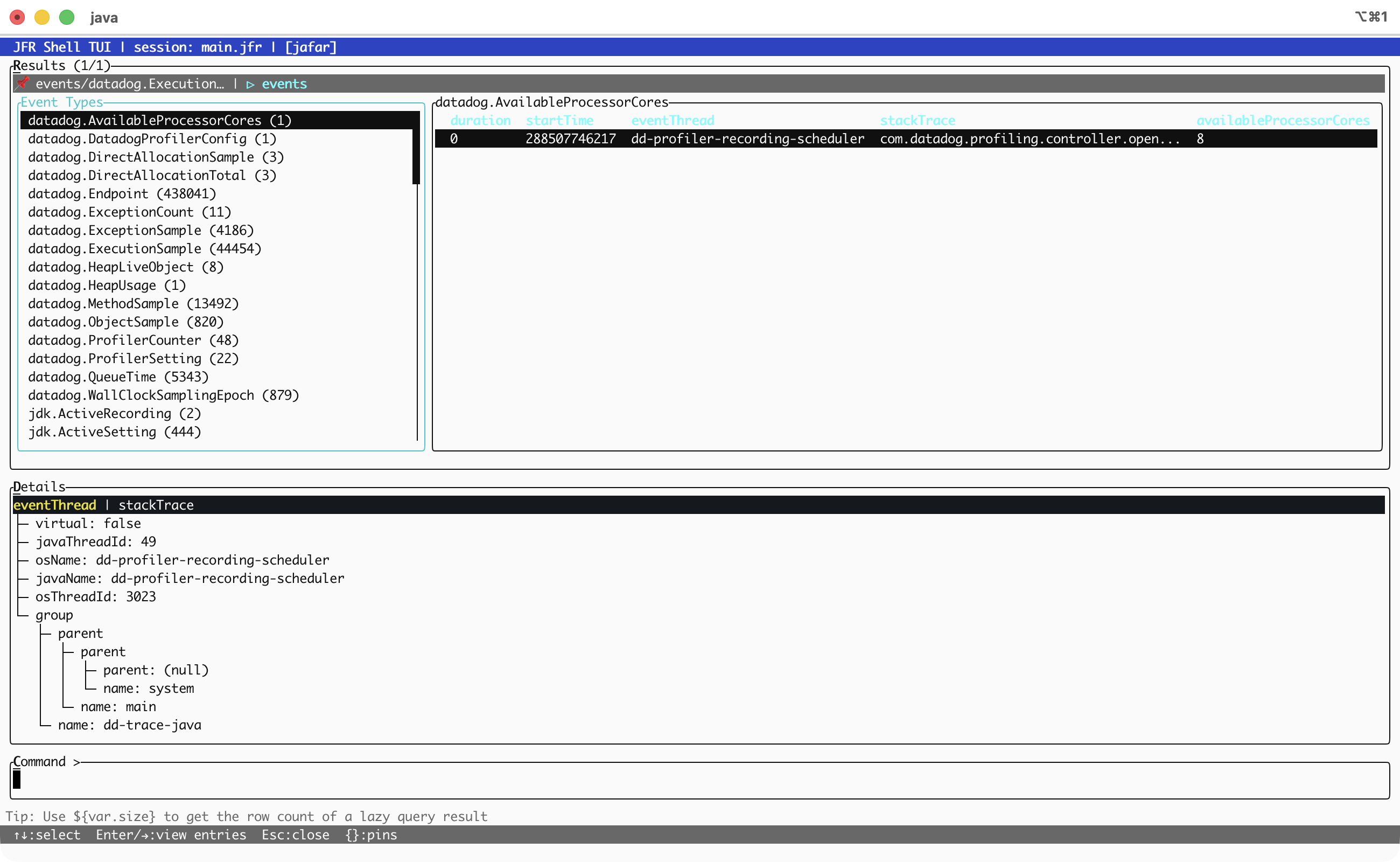
Select a row and press Enter. The results pane splits: the table stays on the left (60%), and a detail view appears on the right (40%). The detail view shows the full structure of the selected row, rendered as a tree, with nested fields, annotations, and type information all expanded.
This is where the TUI earns its keep. In the old REPL, inspecting a complex event meant running show metadata in a separate query, cross-referencing field names, and hoping your mental model held. Now you just arrow down to a row and hit Enter.
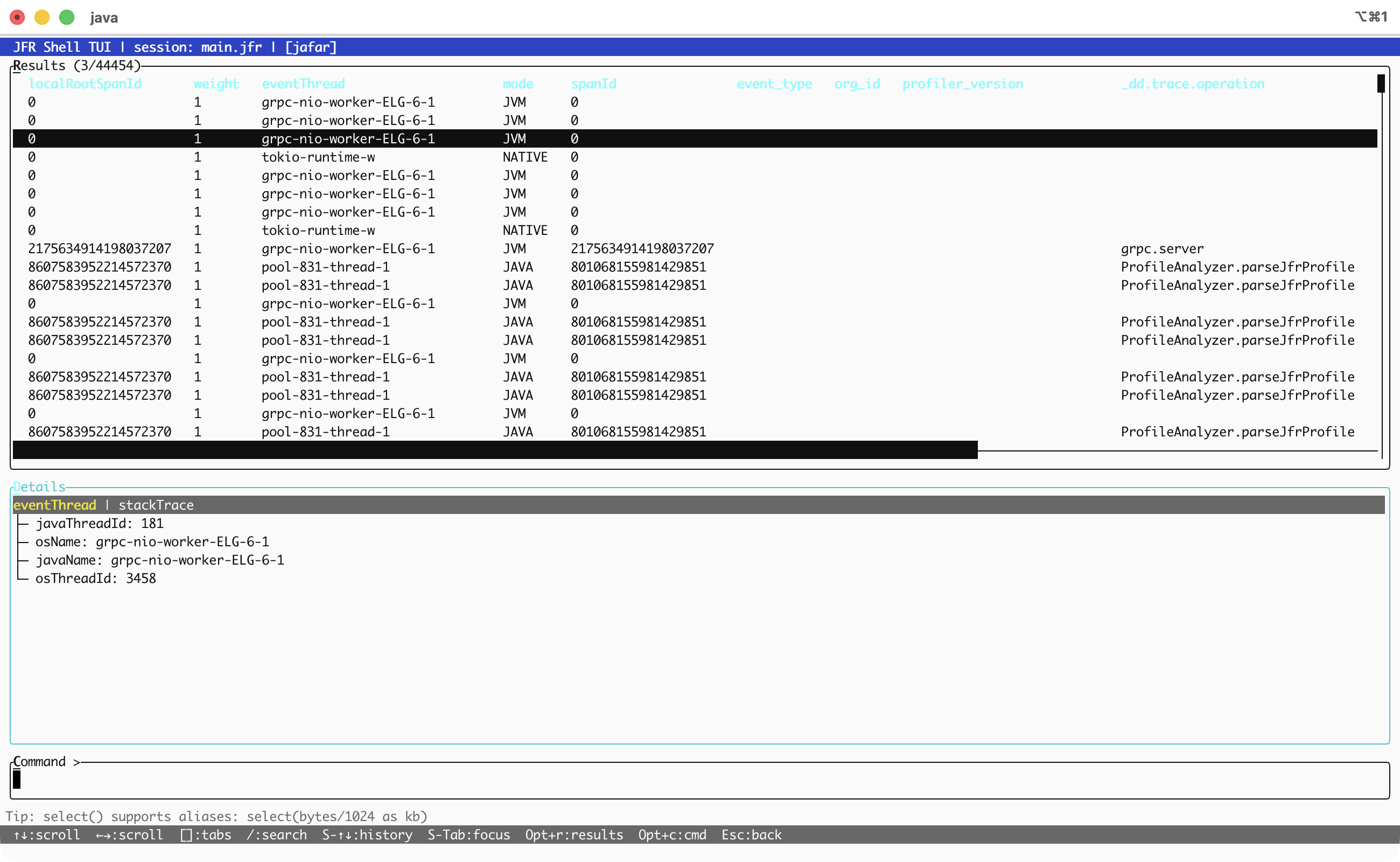
Detail subtabs (switch with [ and ]) let you inspect different aspects of the selected row. Shift+Tab moves focus between the results table and the detail pane. The detail pane has its own scrolling, its own search (Ctrl+F while focused there), and its own cursor navigation.
Event Browser
Type events to see every event type present in the recording, listed as a navigable table with event counts. This is the starting point for exploring an unfamiliar recording - you see what’s there before writing any queries.
Constant Pool Browser
The constant pool browser is one of those features that sounds niche until you need it - and then it’s the only thing that matters.
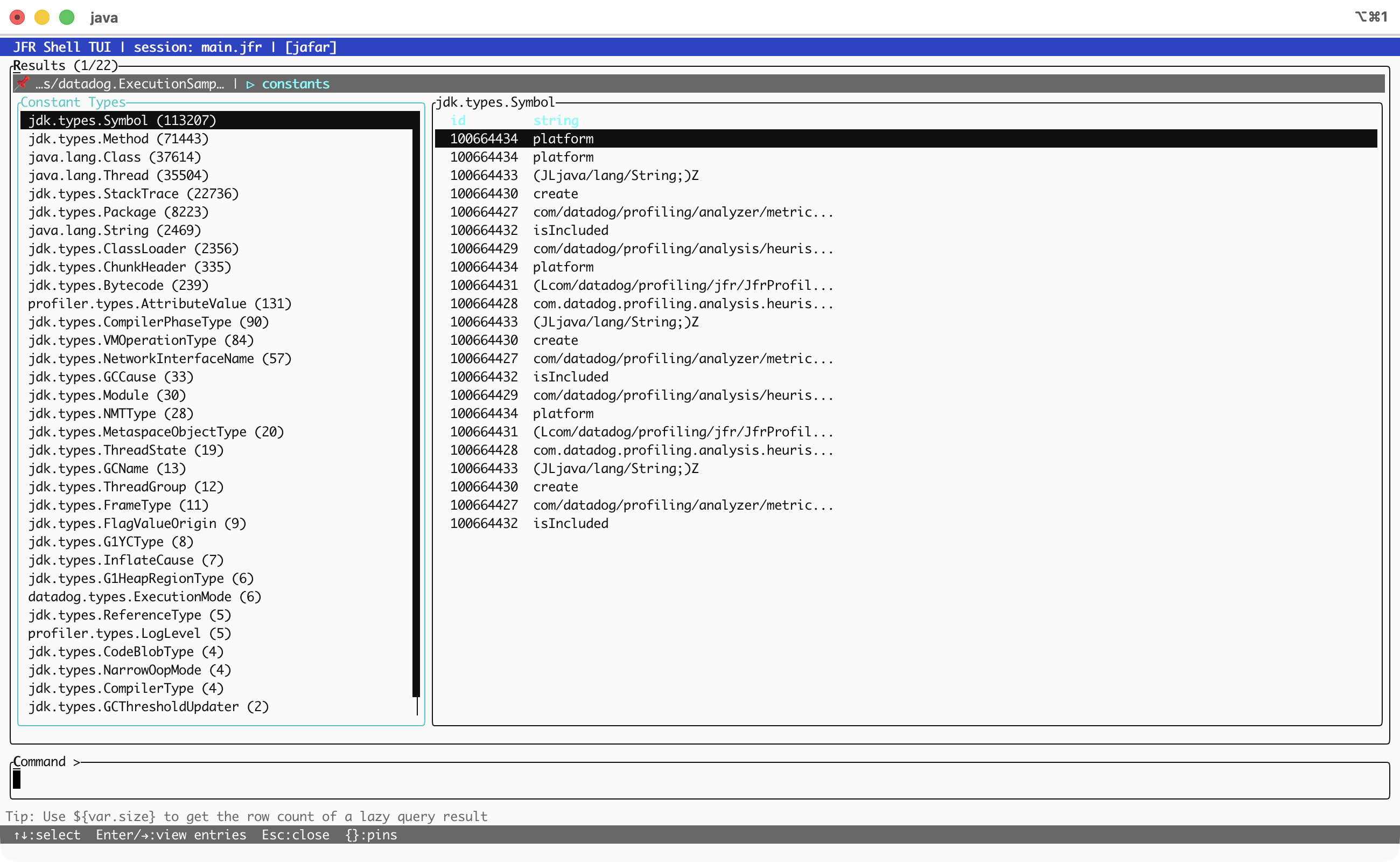
Type constants to see all constant pool types. Select a type and press Enter to browse its entries, or type constants jdk.types.Symbol to jump straight to a specific type. Navigate with arrow keys, press Ctrl+F to filter the type list.
For large constant pools, entries are paginated automatically so the UI stays responsive even when a recording has hundreds of thousands of entries.
Metadata
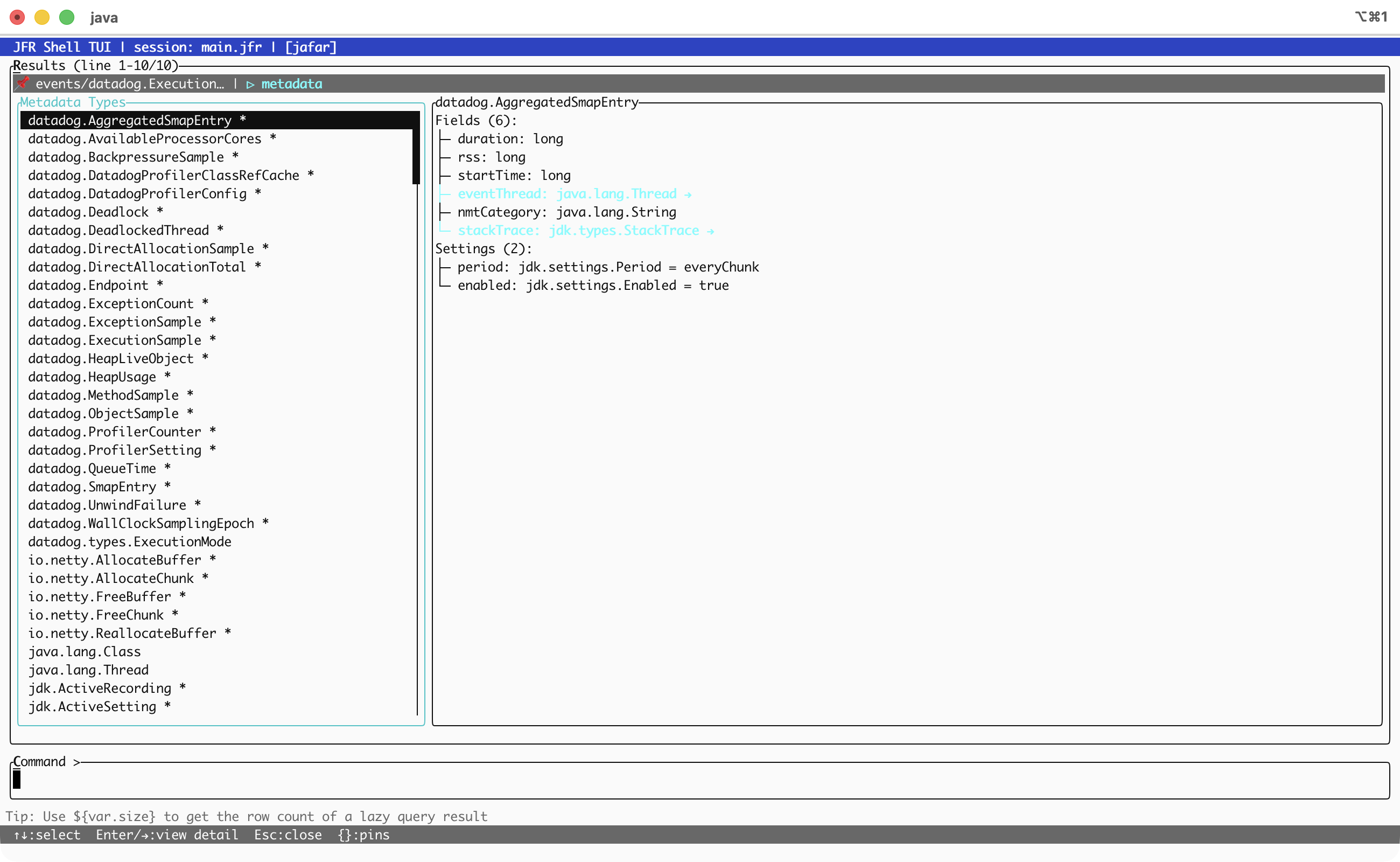
metadata lists every event, type and annotation defined in the recording as a navigable table. Field names, types, dimensions - all browsable without leaving the TUI.
Session Switching
Working with multiple recordings is common when doing comparative analysis - “before” and “after” a change, or multiple services in a distributed trace. Alt+s opens a session picker overlay. Arrow to the session you want, hit Enter. The results pane updates to show results from the new active session.
Completion
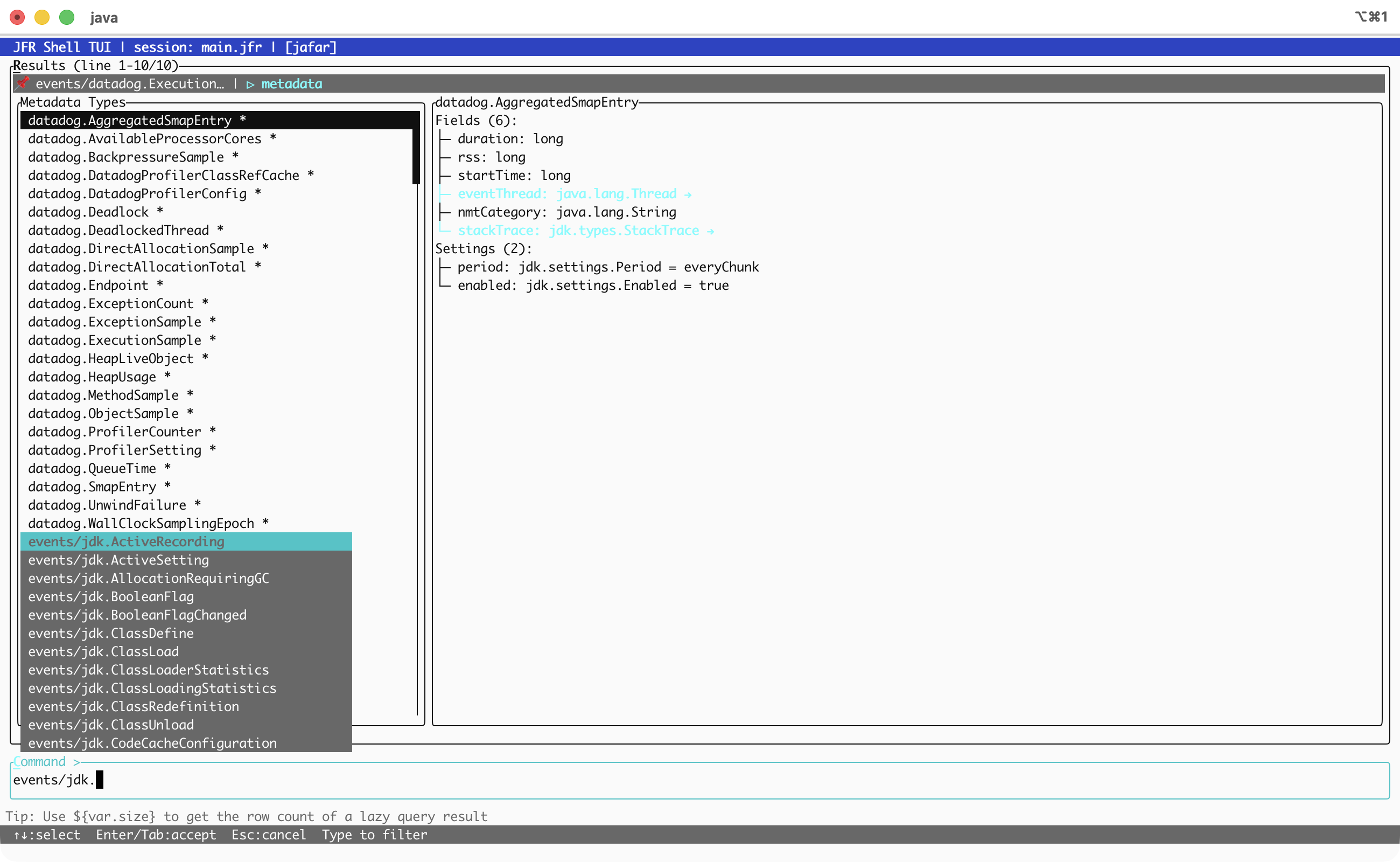
Tab in the command input opens a completion popup. It’s context-aware: event type names after events/, field paths in filters, function names in aggregations, file paths after open. Type to narrow the list, arrow keys to select, Enter to accept.
Export
Ctrl+E exports the active tab’s table data to a CSV file. A popup opens with a default path under ~/.jfr-shell/exports/; edit it or just press Enter. Done. No more --format csv > output.csv and rebuilding the query from memory.
History
Ctrl+R opens reverse-i-search, exactly like bash. Start typing and it finds the most recent matching command. Ctrl+R again jumps to the next match. Enter accepts, Esc cancels. Command history persists across sessions in ~/.jfr-shell/history.
Combined with Shift+Up/Down for simple history scrolling, you never have to retype a query.
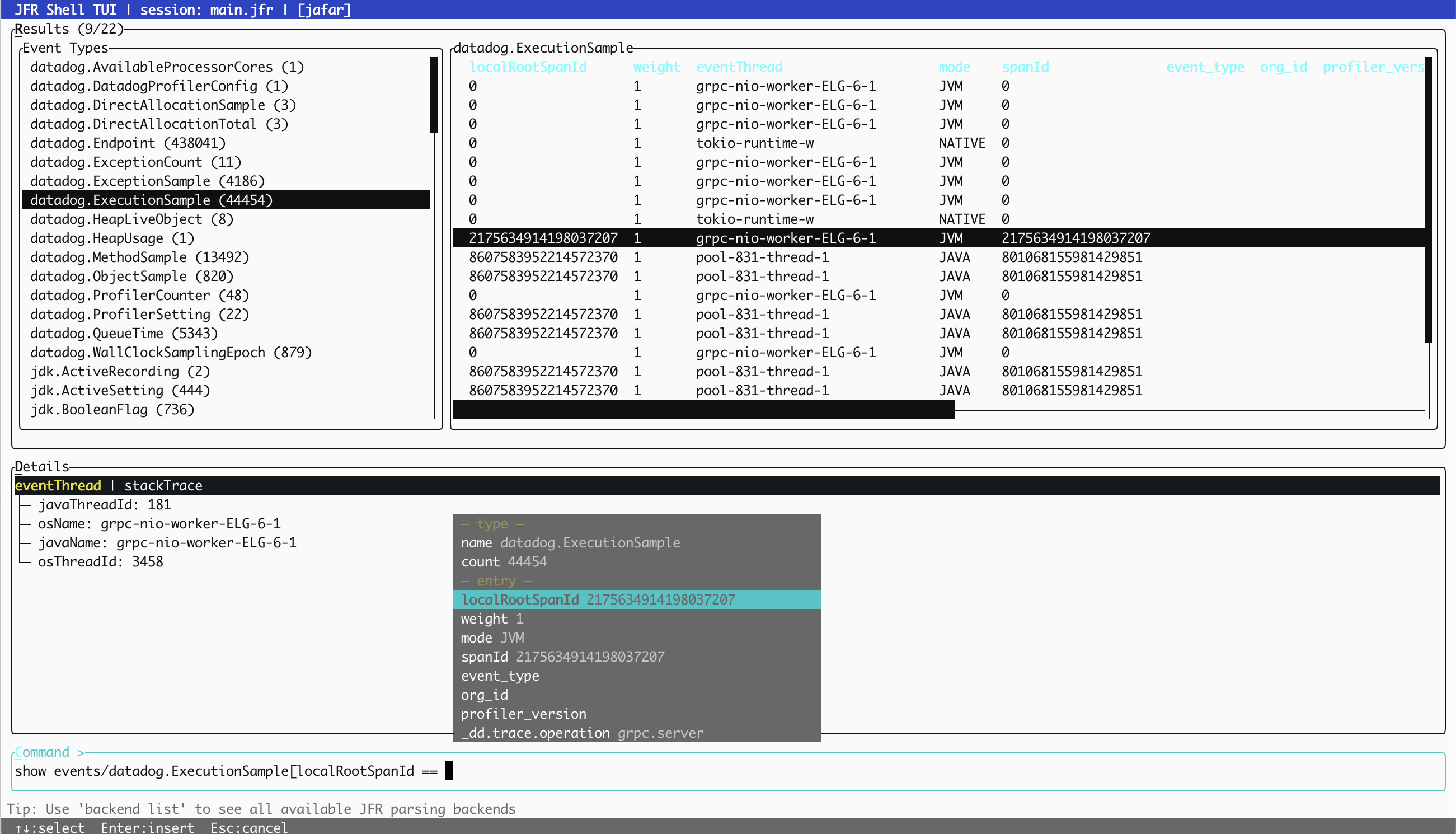
Cell Picker
Press @ to open a popup listing every field and value of the currently selected row. Arrow to the one you want, press Enter — the value is inserted into the command input and copied to the clipboard. Useful for grabbing a thread name, stack trace hash, or constant pool ID without retyping it.
The Keyboard Cheat Sheet
The hints bar at the bottom of the screen adapts to the current focus. When you’re in the results pane, it shows shortcuts like ↑↓:row <>:sort col Ctrl+F:search Ctrl+P:pin. When you’re in the command input, it shows Enter:run Tab:complete Ctrl+R:search history. It’s always telling you what’s available without you having to memorize anything.
Here’s the full set:
| Context | Key | Action |
|---|---|---|
| Global | { / } |
Switch tabs |
| Global | Ctrl+P |
Pin/unpin tab |
| Global | Ctrl+E |
Export to CSV |
| Global | Ctrl+R |
History search |
| Global | Alt+s |
Session picker |
| Results | Ctrl+F |
Search/filter |
| Results | < / > |
Sort by column |
| Results | Alt+r |
Reverse sort |
| Results | Enter |
Open detail pane |
| Results | Alt+d |
Jump to detail |
| Results | Shift+Tab |
Cycle focus |
| Detail | [ / ] |
Switch subtabs |
| Detail | Ctrl+F |
Search in detail |
| Detail | Alt+r |
Jump to results |
| Input | Tab |
Completion |
| Input | @ |
Cell picker |
| Input | Alt+r |
Jump to results |
| Input | Alt+c |
Jump to command |
| Search | Ctrl+L |
Apply to both panes |
Under the Hood
The TUI is built on TamboUI, a Java terminal UI framework inspired by Rust’s ratatui. TamboUI provides the widget set (tables, trees, text inputs, tabs, scrollbars, blocks with borders), the constraint-based layout system, and the styling primitives. jfr-shell composes these into the full-screen application.
The rendering loop is simple: draw the frame, wait for input with a 100ms timeout, handle the keystroke, repeat. Commands execute asynchronously in a background thread, with a braille spinner animation in the status area while they run. Results stream into the active tab as they arrive.
The terminal backend is JLine-based, using raw mode for direct keystroke capture and the alternate screen buffer so your shell history stays clean when you exit.
No external GUI dependencies. No Electron. No web browser. Just ANSI escape codes and a well-organized widget tree.
Try It
# JBang (easiest)
jbang jafar-shell@btraceio --tui
jfr> open recording.jfr

# Or build from source
./gradlew :jfr-shell:shadowJar
java -jar jfr-shell/build/libs/jfr-shell-*-all.jar --tui
If you have been using jfr-shell in REPL mode and getting by just fine, the TUI won’t change what you can do. It changes how it feels to do it. Queries that used to involve scrolling, re-running, and squinting now involve pointing and pressing Enter.
The REPL is still there, unchanged, for scripts and non-interactive use. --tui is strictly additive.
jfr-shell 0.14.2 is available on Maven Central and via JBang. Source on GitHub.